
Web Studio streaming guide
Last updated: September 8, 2025
Going live in a nutshell
- Log in to Videosync Admin at https://app.videosync.fi/sign-in
- Get ready for live with your camera and mic and go to Live - Web studio
- Share presenter link to external speakers if you have any
- Setup the studio stream for the live event
- Test with Preview that everything looks good
- Start recording and go live
- Control your presentation, chat and polls
- End the live event and publish recording
Before the event: Set up the Web Studio
Create a Web studio for event

Under Live → Web Studio click Create Studio or Create studio with Conference Call.
The option with Conference Call means that you can have dial-in access to for audience to ask questions via phone. If you already have Conference Call bridge set up for this event, the web studio will use the existing bridge.
After creating the studio, you can access the studio by clicking Go to studio button.
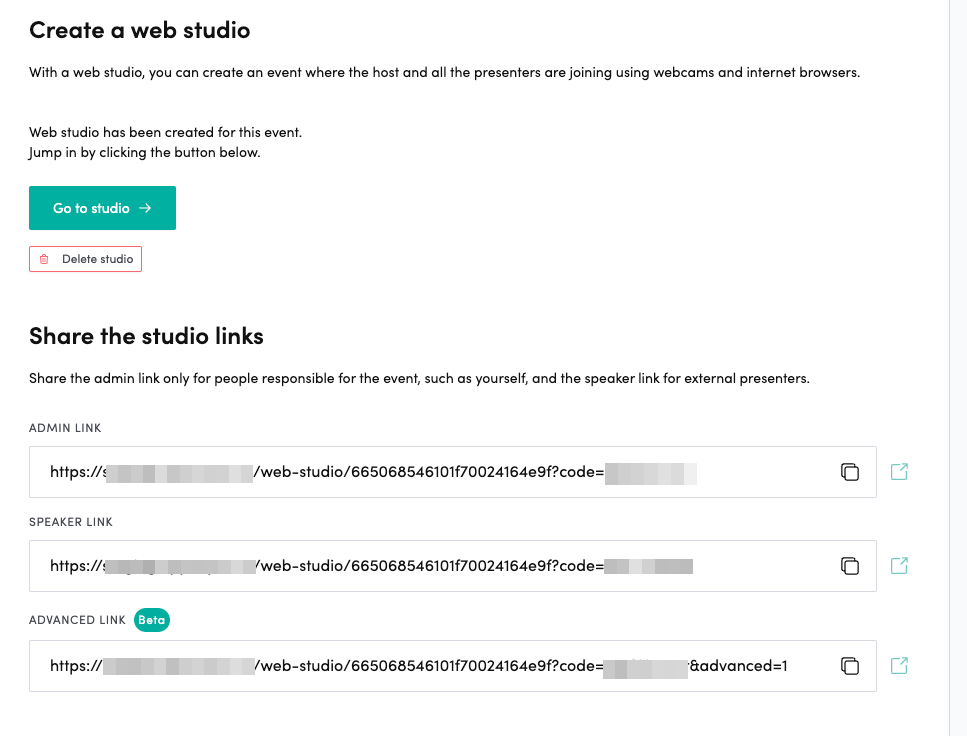
You can also copy the studio links:
- Admin link is for event hosts or moderators to control the event
- Speaker link is for remote speakers who should be able to speak but should not control the live event
- Advanced link is for professional studio usage and for testing new features. Videosync team may ask you to use the advanced link in some use cases
Open the studio: set your audio and video devices
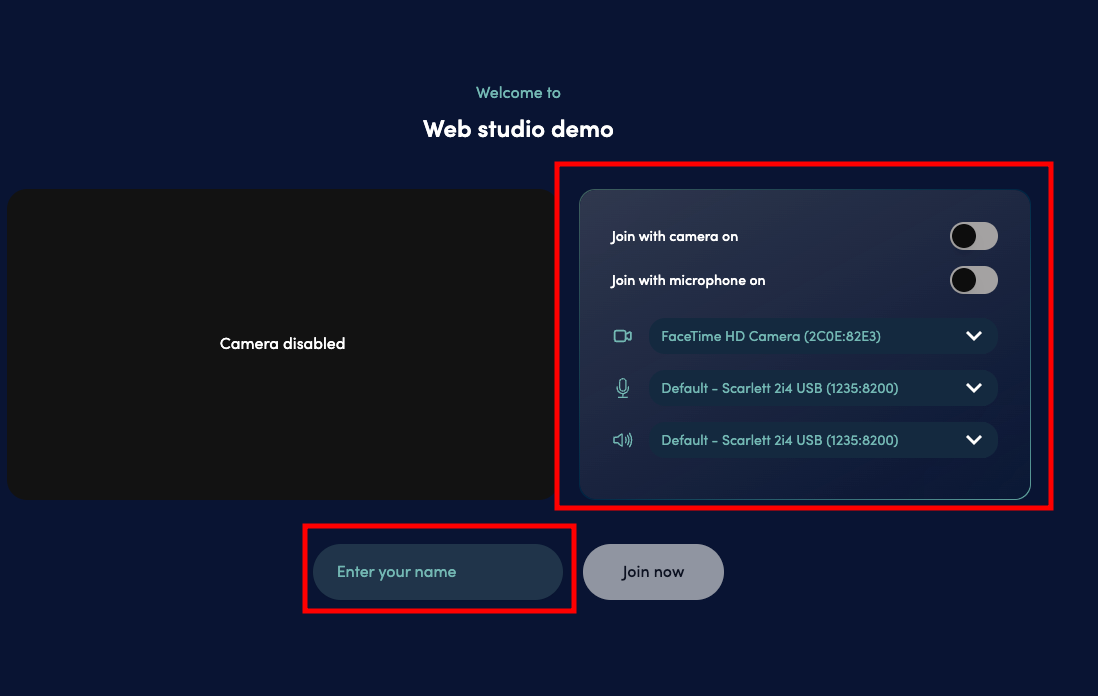
When you join the Web studio, please choose the right camera and microphone. Allow access to camera and microphone if your browser asks it.
Enter your name. This name is visible only for other admins and speakers in Web studio - not for participants.
Check that your image looks balanced. If everything works, join the Web studio.
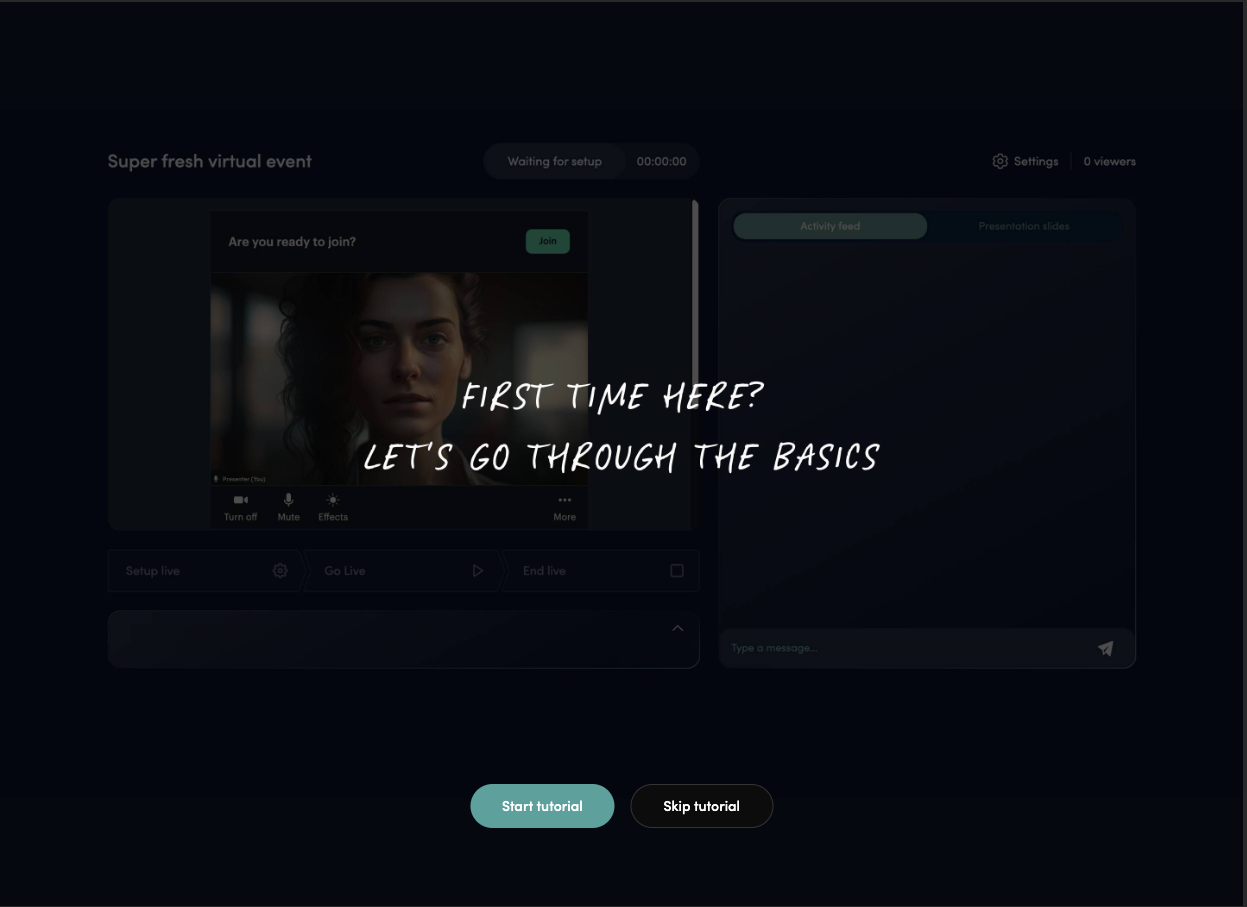
When you use the web studio for the first time, the studio tutorial will appear. You can also open the tutorial later from the top-right corner by clicking on the Help button.


You can still modify and test your camera and microphone settings from behind the Settings button.
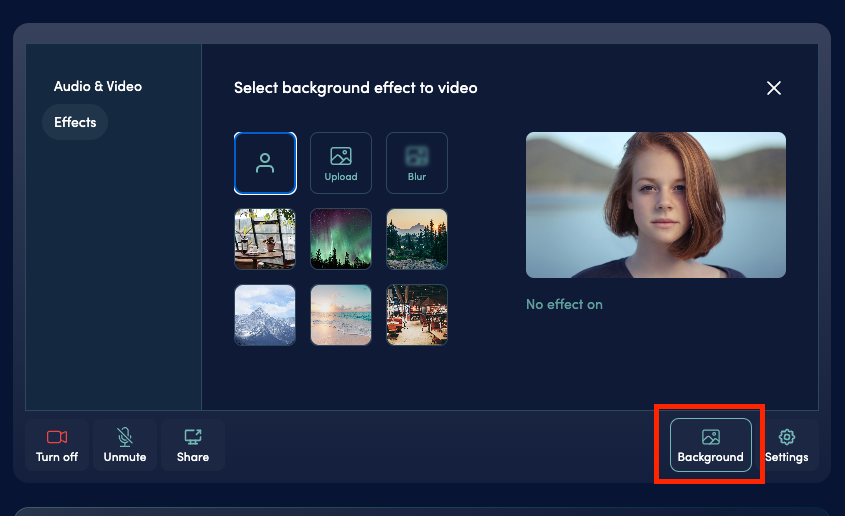
You can choose and upload a background image for your video from behind the Background button. The recommended dimensions for background image is 1920 x 1080 px.
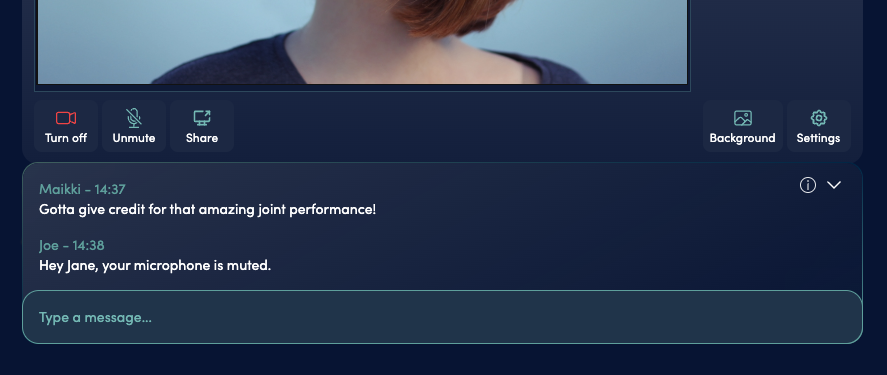
You can chat privately with other presenters in backstage chat.
Prepare to go live
Around 10 minutes before the event starts, you should setup the live event.
Click on Setup live to do that. This will not publish your stream to audience yet but it prepares the event for going live by starting the video processing and connecting the Conference Call (if enabled) to the Web studio.
Previewing the stream
The audience can’t hear or see you yet, but you can preview your video and audio on the preview link. (Settings → Preview link)
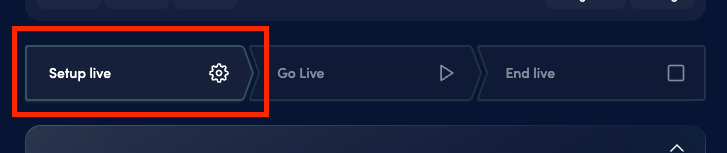

When you see status ready to go live, your event is ready to be started
Note that there is a delay of 10-15 seconds in the stream, but your slides and speech are in sync. You can also access the Event page in event link and see that you’re not yet live to the audience.

If everything looks good, you’re ready for the live. You can go and click go live.


Please do not start speaking before you have clicked on the Go Live button. When going live, in the top of your browser there is a status indicator that will turn red and state “Live and recording” and this indicates that you are live and everything is running smoothly. Note that there might be some delay (even up to 10 seconds) in the indicator state change, but you do not need to care about this - you can start speaking almost immediately after you have clicked Go Live.
During: Control your live event
Activity feed: Moderate chat

In the activity feed on the right, you can view all the polls and messages sent in chat. You can manage and respond to them as desired. You can also filter them using the dropdown menu.
Presentation slides: Change slides for audience
To activate slides, go to the Presentation tab, and in the dropdown under Presentation, you’ll find the Manage Slides section. From there, you can organize and add slides.


Play clip (beta)

Play Clip is a feature that allows you to upload your own videos to the Web Studio and play them.
The clip will play for all viewers, speakers, and admins.
Supported file types are .mp4, .mov, .mkv, .webm, .mp3 and .aac.*
Play Clip Once
will play the clip only once. You can stop the clip by pressing Stop.

Play Clip on Loop
will continuously play the clip until you press Stop.

You can delete the clip by clicking the trash bin icon.


When the clip is playing, it should appear like this. You can stop the clip by pressing the Stop button.
People: Raised hands from Talkback and Conference Call


If your event has Talkback (“raise hand” on event page) or Conference Call enabled, you’ll see the Raised hands from the audience on People tab.
When you are ready for audience questions, you can activate the participant’s microphone by clicking Activate.
- Talkback participant is given a permission to open their mic and the participants will still need to unmute themselves
- Conference call participant’s microphone is activated immediately
The participant’s name is automatically being annoupnced by virtual moderator as “The next question comes from John Doe from Acme inc. Please go a head”.
If you want to disable the virtual moderator or change the language, go to settings and adjust set settings accordingly.
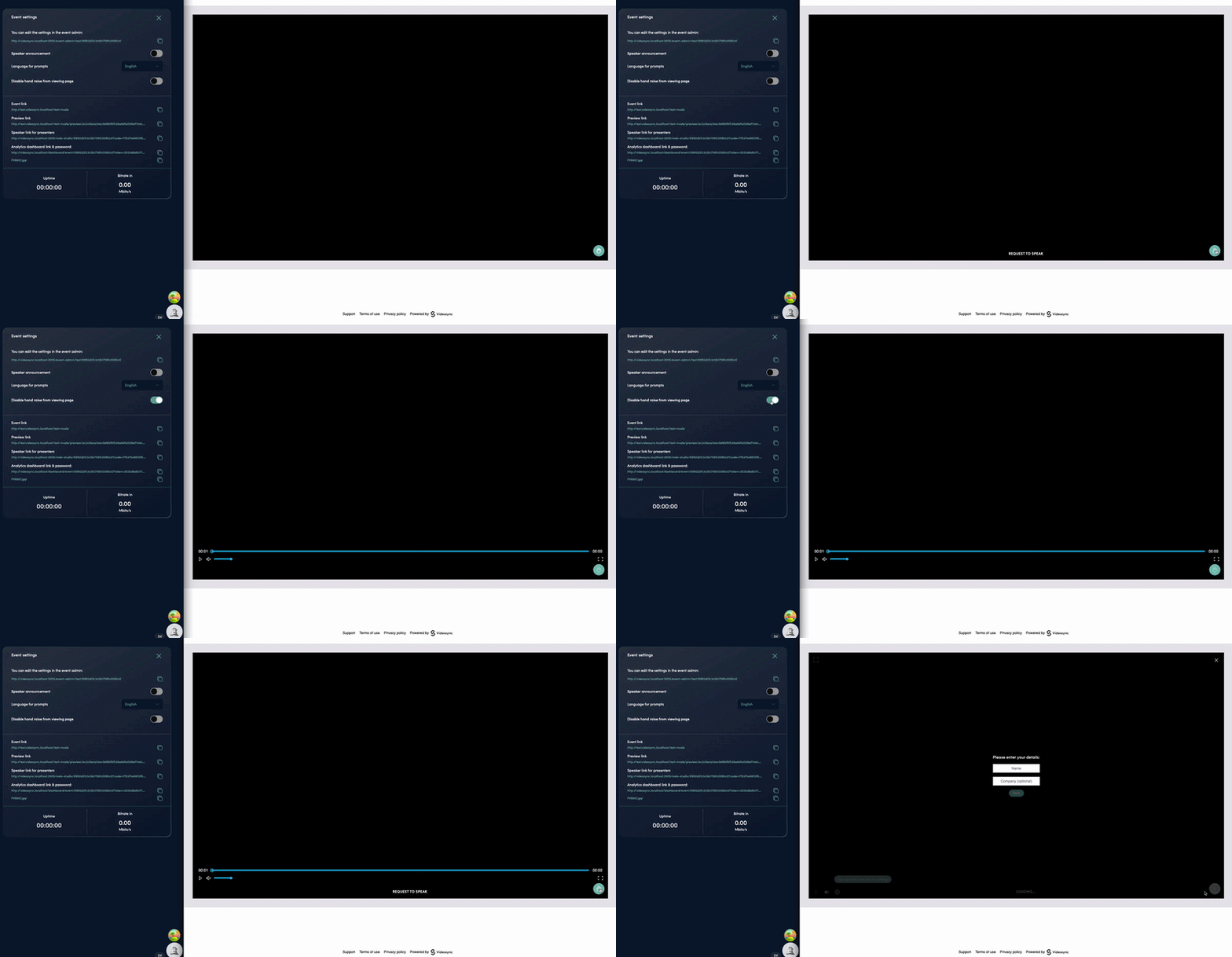

With Talkback, you can disable the hand-raise feature on the viewing page by toggling the ‘Allow talkback attendees to raise hand’ option. This does not remove the feature from the viewing page; it only prevents the hand-raise button from being pressed.

You can also use the virtual moderator to play out text to speech prompts the People → In the queue page.
Controlling users in the queue
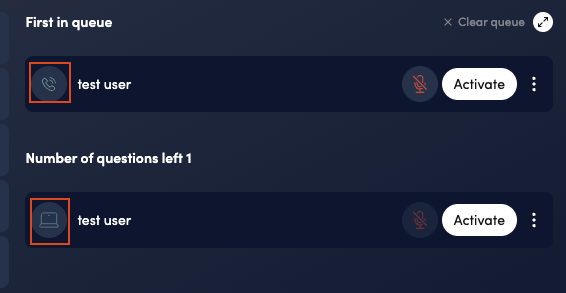
You can distinguish Talkback users from Dial-in users by the icon next to the participant’s name (Talkback = laptop, Dial-in = phone).
Talkback user controls:
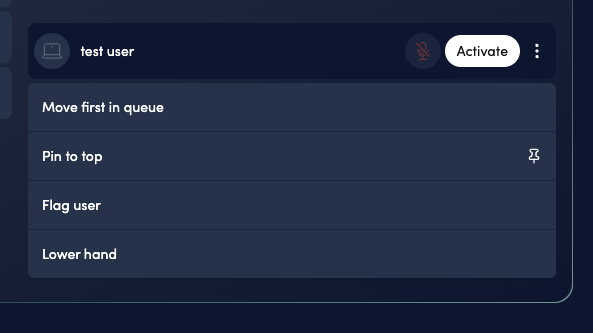
- Move First in Queue – moves the user to the first position in the queue.
- Pin to Top – moves the user to the top of the queue and keeps them there even when other users are reordered.
- Flag User – adds a flag to the user.
- Lower Hand – lowers the user’s hand.
Dial-in participant controls:

- Move First in Queue – moves the user to the first position in the queue.
- Pin to Top – moves the user to the top of the queue and keeps them there even when other users are reordered.
- Flag User – adds a flag to the user.
- Lower Hand – lowers the user’s hand.
- Drop Participant – removes the user completely from the line.
- Unmute – unmutes the user.
- Change Name – allows you to change the participant’s name.
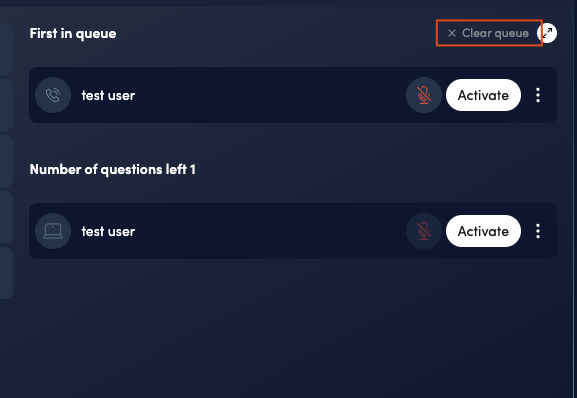
The Clear Queue button lowers the hands of all questioners at the same time.
End live and stop recording


When you’re ready with your event, just click End live in the state selector. Now your event is no longer streamed on the event page and the recording has stopped.
The Web Studio state should appear as follows after completing these steps.
Congrats, your live is over and recorded! 🎉
Publishing the recording
If the stream went smoothly and no editing is required, click the Publish button. This will upload the recorded version of the presentation to the same audience link for on-demand viewing.
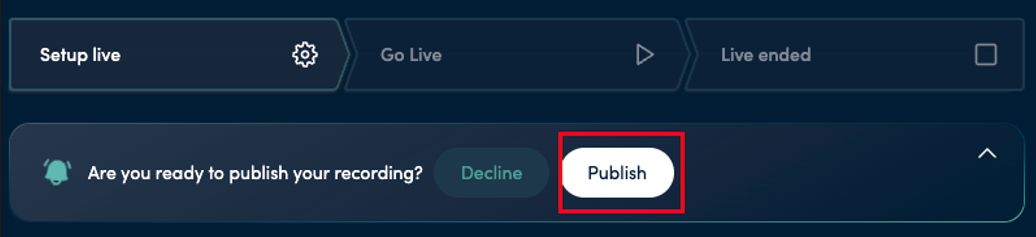
If you need to edit the recording, you can do so in Videosync Admin panel and then publish the recording instead of publishing it directly in Web Studio.
After: Edit and publish recording
-
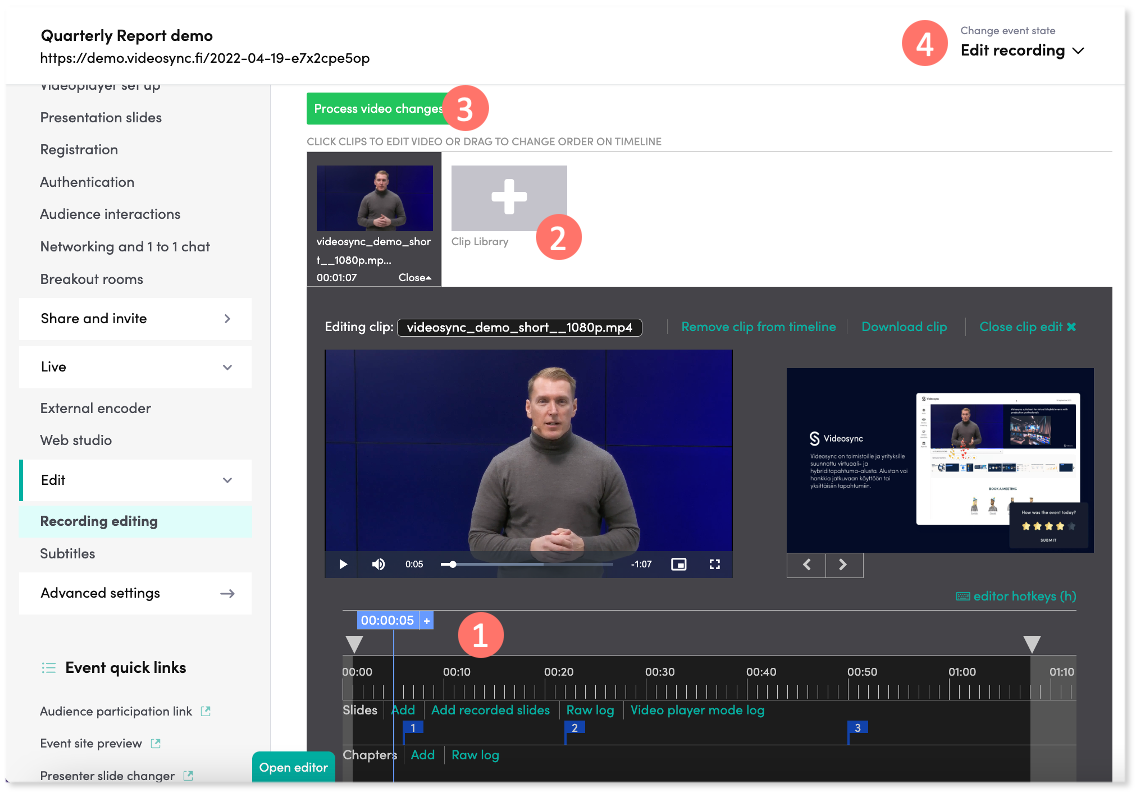
After your event, you can edit the recording in Edit → Recording editing.
-
You can easily modify the video clip: Trim the recording from beginning or the end or add, remove and move slides, chapters or polls.
-
You can also add new video clips if needed
-
After editing, click Process video changes to save your changes
-
When you’re ready to publish your recording, change its event state to Publish recording. Now your recording is available on the event site!
-
For more detailed instructions on editing, check Editing and publishing a recording
Can't find what you're looking for?
Our AI assistant is here to help you find the information you need.