
Audience profiling
Last updated: June 15, 2026
Audience profiling is currently available on the new event site with Custom registration. If you don’t see the option, contact support@videosync.fi.
Audience profiling lets you ask each attendee to identify themselves by category — for example Analyst, Retail investor, Professional investor, or Other — when they register for your event. The profile each person selects is stored with their registration, so you break down attendance and engagement by audience type in the Analytics dashboard.
Beyond reporting, profiles can also control what each attendee is able to do during the event. By sending different profiles to different stream destinations, you can give some profiles the ability to participate real-time — and join in audio Q&A also with telephone dial-in — while others watch the broadcast. This is especially useful for investor relations events, webinars, and any broadcast where it matters who is watching, not just how many.
How it works
When audience profiling is enabled, the event entry flow has two steps:
- Profile selection — the attendee first chooses the profile that best describes them.
- Registration — the standard registration form (name, company, etc.) appears, and the attendee completes it as usual.
The selected profile is saved alongside the rest of the attendee’s registration data.
What attendees see
When attendees open the event link, they are asked to select a profile before anything else:
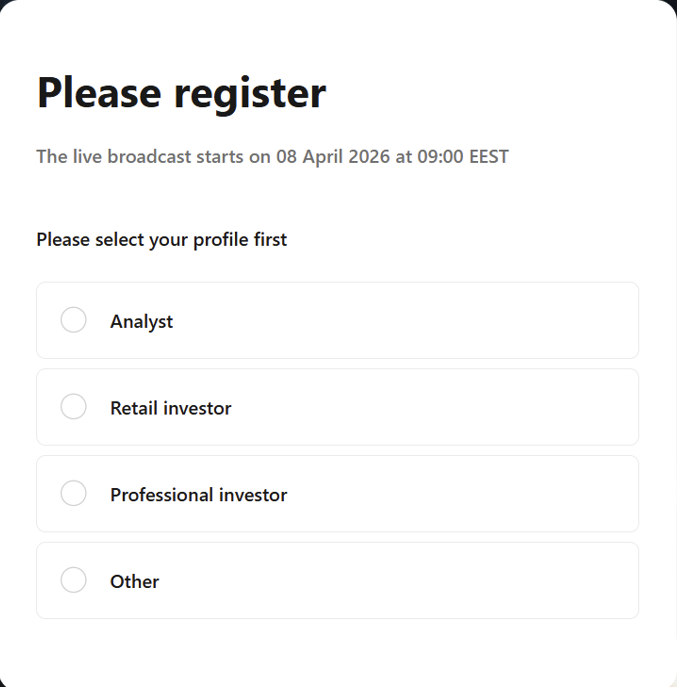
Attendees pick the option that best describes them, then continue to the standard registration form.
Setting up audience profiling
Audience profiling is configured as part of your event’s registration settings.
- Open your event in Event Admin.
- Go to Build → Registration.
- Set the registration mode to Custom.
- Enable Participant profiling and add the profile options you want to offer (for example: Analyst, Retail investor, Professional investor, Other).
- For each profile, set its Destination — where that profile is sent when they join (see below).
- Save your changes and preview the event to confirm the profile step appears before the registration form.
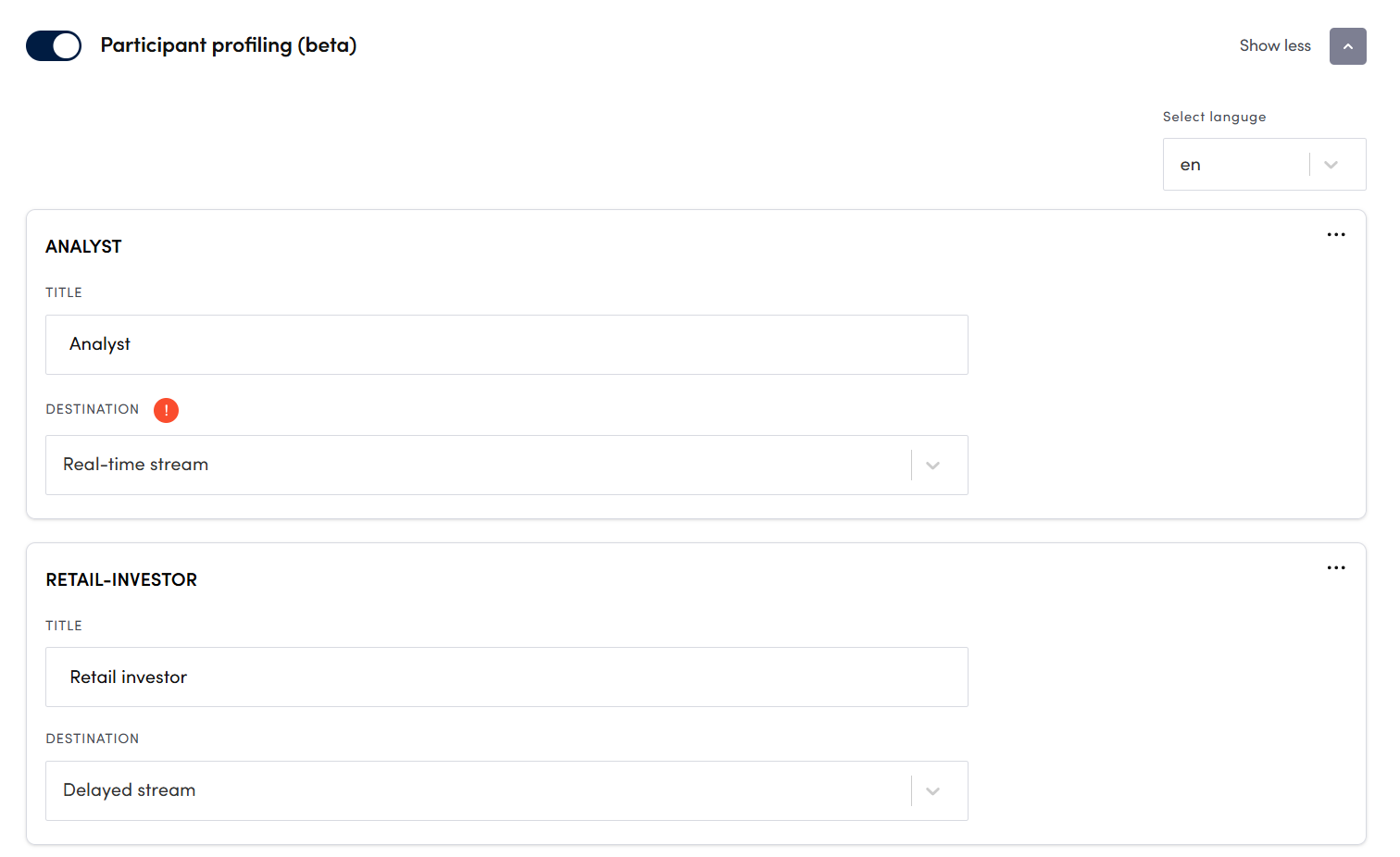
Each profile has an editable title and a destination. Add, rename, or reorder profiles to match your audience.
Keep the list of profiles short and clear. Three to five options is usually enough — too many choices can slow attendees down at the entry step.
Setting each profile’s destination
Each profile is assigned a Destination that determines how that audience joins the event:
- Real-time stream — the attendee joins the live real-time stream and can participate also with telephone dial-in. Real-time requires Web Studio and Talkback to be enabled.
- Delayed stream — the attendee watches the standard broadcast stream and follows along, without telephone dial-in rights.
For example, you can send analysts and professional (institutional) investors to the real-time stream so they can ask questions, while retail investors watch on the delayed stream. This lets you run a single event for a mixed audience while still controlling who can speak or call in.
To show each profile the right joining instructions (such as dial-in numbers or Talkback details), enable also Show participation details. For the full breakdown of that setting, see Showing attendees how to participate (dial-in & web).
Viewing profile data in analytics
Once your event is live or finished, you can see how your audience breaks down by profile in the Analytics dashboard. This lets you answer questions like how many analysts attended or which audience type was most engaged.
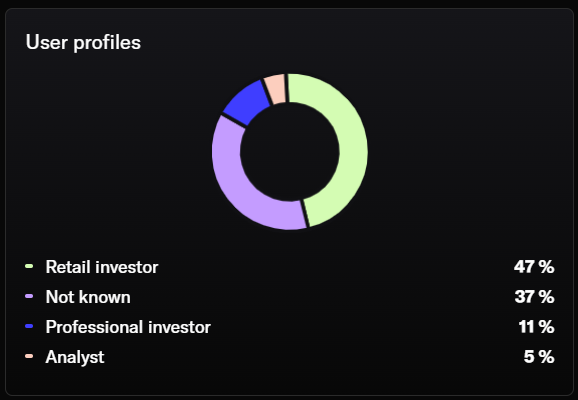
Profile data appears alongside your other attendance and engagement metrics.
Tips
- Use audience profiling when the type of attendee matters, such as investor events.
- Combine profile data with engagement metrics to understand which audience segments are most active.
- Use stream destinations to host a single event for a mixed audience — for example, let analysts and institutional investors ask questions on the real-time stream while retail investors watch the delayed stream.