
AI tools and MCP
Last updated: November 19, 2026
The Videosync MCP lets AI tools such as Claude and ChatGPT work with your events. Ask for a webinar next Tuesday and the AI creates it. Ask it to add a speaker or change the page colors and it makes the change.
MCP (Model Context Protocol) is the open standard AI tools use to connect to other services.
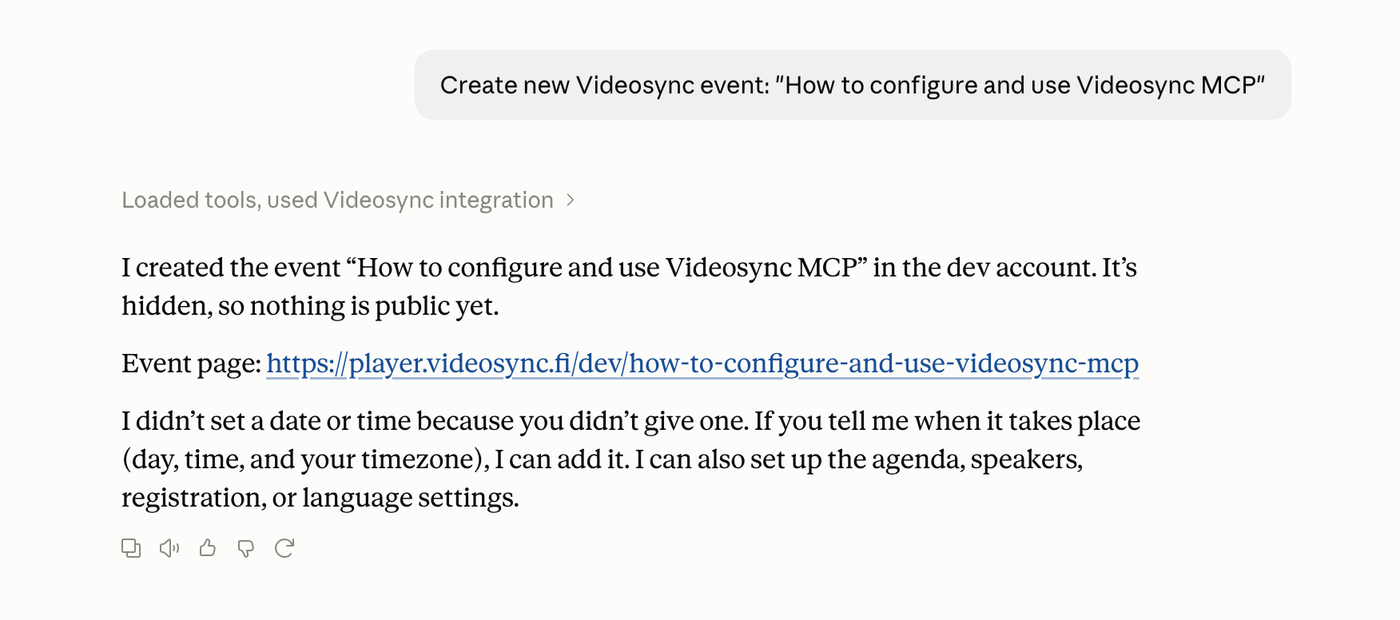
There are two ways to connect:
- Sign in. A person adds Videosync to their AI tool and signs in. The AI acts as that person. See Connect Claude , Connect ChatGPT and Connect Copilot Studio . In Settings, AI apps (MCP) under You shows the MCP URL and the apps you connected.
- MCP key. A program uses a key made in the account settings. The AI acts as the key. See MCP keys and technical details .
What the AI can do
| Tool | What it does |
|---|---|
| Browse events | Lists and searches events by title and date range. |
| Browse categories | Lists the account’s event categories. |
| Read the selected event transcript | Reads the transcript selected for an event, even when it is hidden from viewers. |
| View event details | Reads an event’s settings, pages, speakers and schedule. |
| Get event links | Returns the event’s links, speaker and web studio links included. |
| Create event | Creates a new event. |
| Edit event details | Changes the title, date, speakers, schedule, registration, chat, languages, theme and how the event is produced. |
| Edit event page | Changes the text and content of the event page. |
| Edit event styles (CSS) | Changes the event page’s CSS. |
| Create poll | Adds a poll to an event. |
Every connection can also list the accounts it can use.
Rolling out
List event registrations (list_event_registrations) reads registration answers, join links and the first recorded live and on-demand visits. The picker shows it under Read attendee data. Send feedback (send_feedback) lets a connected app or program report what it couldn’t do through MCP. It is available automatically where it has rolled out.
Planned tools
These tools are in development. Release timing may change.
| Planned tool | What it will do |
|---|---|
get_event_polls |
Find polls v2 questions and read stored results, including survey results and CTA totals. |
list_poll_votes |
Read a question’s votes, filter by answer option where supported and match eligible votes to registrations when both tools are allowed. |
list_event_messages |
Read written questions and chat messages, including their status and reactions. |
get_event_analytics |
Read event-level plays, distinct viewers, and total and average viewing minutes for live and replay. |
Longer-term ideas include audience timelines and audience breakdowns by country and playback location.
Limitations
- Old event site events are read-only. The AI can read them but not change them. Edit them in Event Admin.
- No going live. People run the studio, the Live Control Room and the encoder.
- No image uploads. The AI can only use images already in the event’s or the account’s images.
- Audience totals, written questions and poll results are planned. Where registration reads are available, they cover recorded visits per registrant.
- No viewer sign-in setup, no reordering page sections and no deleting events.
- Conference call modes and IR marking work only on accounts that have them.
- A retried request can create a second event. If the AI tool reports an error while creating an event, check the events list before you ask again.
- Only some changes can be undone. See Undo a change with version history below.
We keep developing the MCP and some of these limits will go away. Tell us which ones matter to you at support@videosync.fi.
Allow tools in your account
The updated AI apps (MCP) page starts on All tools. This also applies to existing accounts after the update. Review the settings if your account previously used a limited list or had AI apps turned off.
- Click your initials in the top-right corner and choose Settings.
- Under your account’s name, open AI apps (MCP).
- Under Allowed tools, choose All tools or Selected tools.
- Click Save changes.
- All tools allows the tools available today and tools added later.
- Selected tools lets you pick individual tools. New tools stay off. Clear all selections and save to turn off AI apps for the account.
If your settings show only a list of checkboxes during the rollout, tick the tools you want and save. An empty list turns off AI apps.
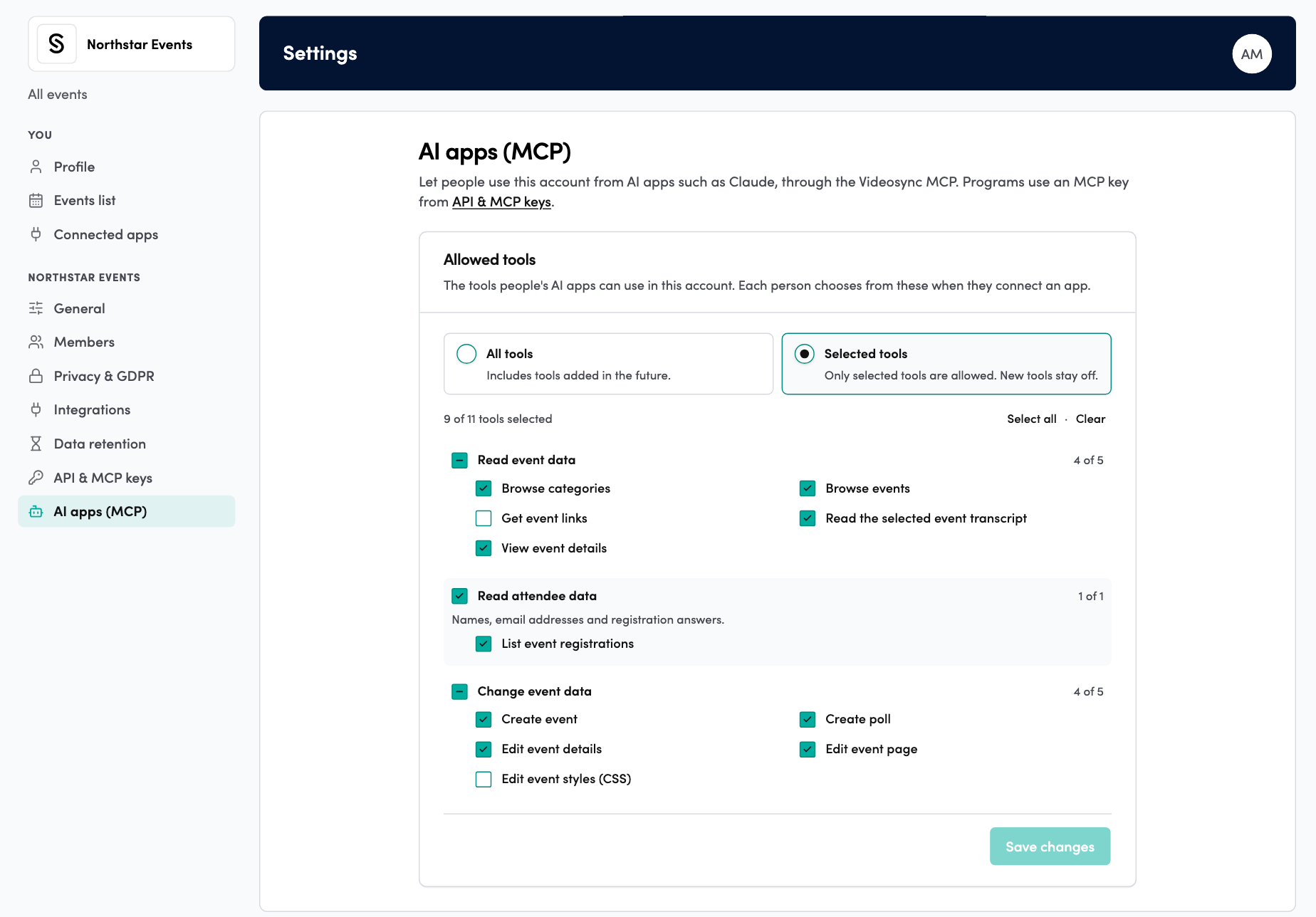
Account settings control what people can use after signing in. Each person can narrow their connection on the consent page. MCP keys have their own tool permissions.
Your responsibility
The AI app uses the account access of the person who connects it. The AI tool is your choice and your responsibility. Videosync doesn’t provide it.
- Your data goes to the AI provider. Review the provider’s terms before allowing access. Read attendee data can include names, email addresses, registration answers and personal join links. Review those permissions before allowing or connecting an app. Select all includes any available attendee data tools.
- Changes are recorded. Videosync saves who changed the account’s tool settings.
When tools change
After the update, existing connections can also use all tools their accounts allow. On the updated consent page, a connection that keeps every available tool selected can use future tools wherever the account allows them. If you leave an available tool unticked, the connection keeps the selected list. To review or change your choices, connect again from the AI app. If your account uses Selected tools, an admin must allow each new tool there first.
MCP keys always use a fixed selection. To add a tool to a key, click Edit on the key and tick it.
Changes apply at once
- New events are created hidden. Nothing is public until someone publishes it.
- Changes to existing events take effect straight away. Videosync doesn’t ask for approval. Check what your AI tool is about to do before you let it.
- Get event links returns speaker and web studio links. Allow it only for people you’d give those links to.
Undo a change with version history
Each change the AI makes to an event is saved in the event’s version history. If a change goes wrong, restore the version from before it.
- Open the event in Event Admin and click Layout editor in the bottom bar.
- Click the cog (Page settings) and choose Version history.
- Pick the version from before the change. Changes made through MCP are marked MCP.
- Click Changes to see what restoring would remove or change on the page.
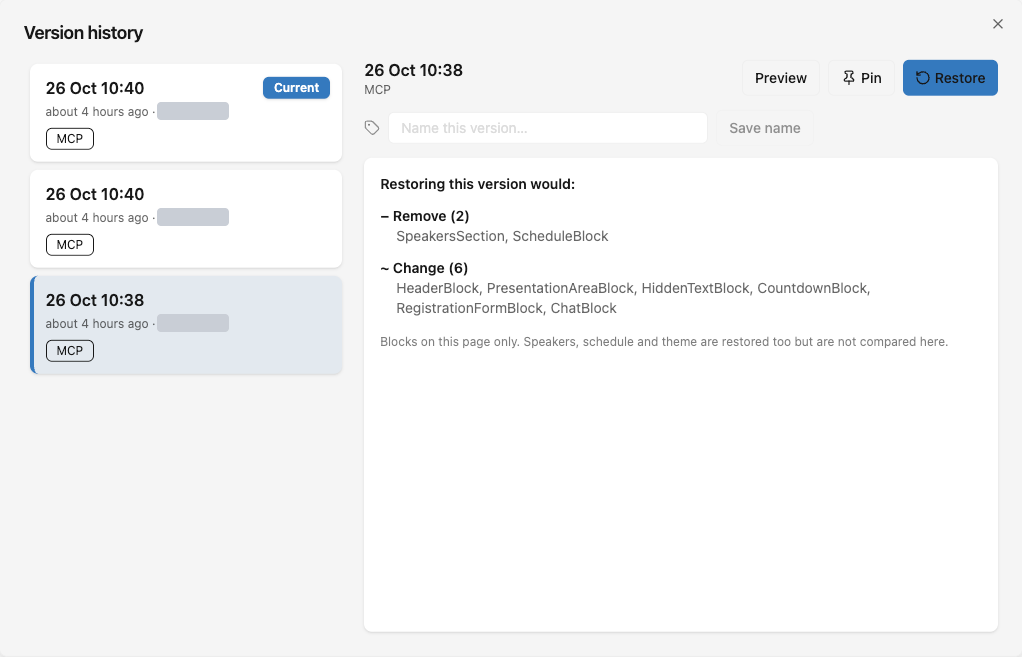
- Click Restore and confirm.
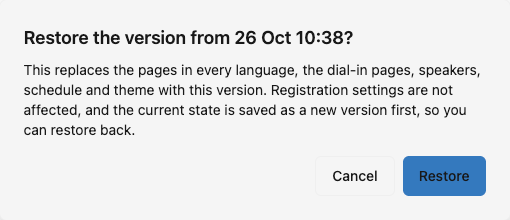
Restoring brings back the pages in every language, the dial-in pages, speakers, schedule and theme. The current state is saved as a new version first, so you can restore back. Unsaved edits in the editor are lost.
Registration settings, the date, the title and the other event settings aren’t restored. Fix those in Event Admin.