
Connect ChatGPT to Videosync
Last updated: November 19, 2026
ChatGPT connects to Videosync as a plugin. You sign in with your own Videosync user and choose which accounts and tools ChatGPT can use.
Your account must allow at least one tool for AI apps. See AI tools and MCP .
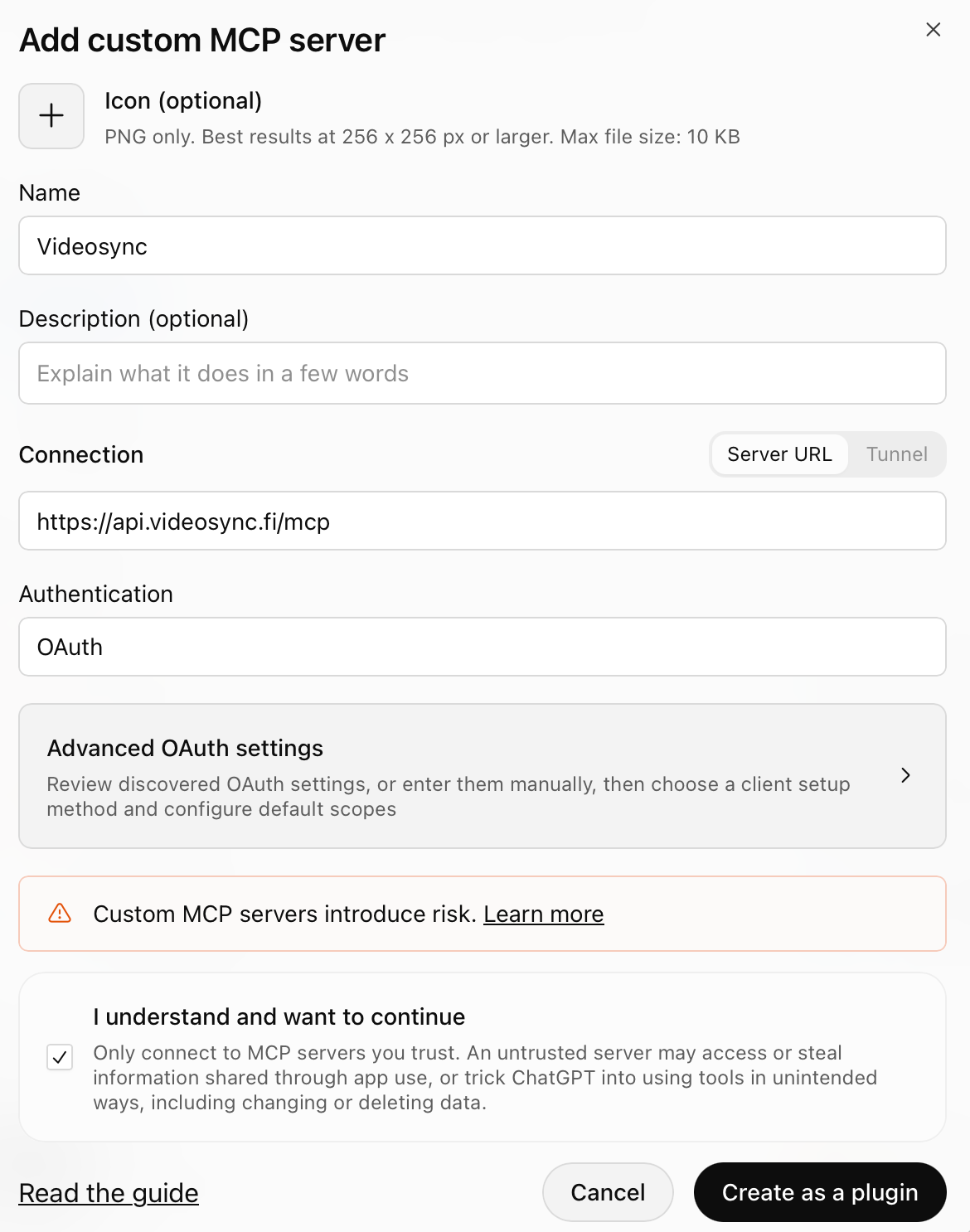
The MCP URL is https://api.videosync.fi/mcp
You can also copy it in Videosync. Open Settings and, under You, open AI apps (MCP).
On a ChatGPT Business, Enterprise or Edu workspace, an admin may have to allow custom MCP servers first. See OpenAI’s guide: Developer mode and MCP apps in ChatGPT .
Add Videosync to ChatGPT
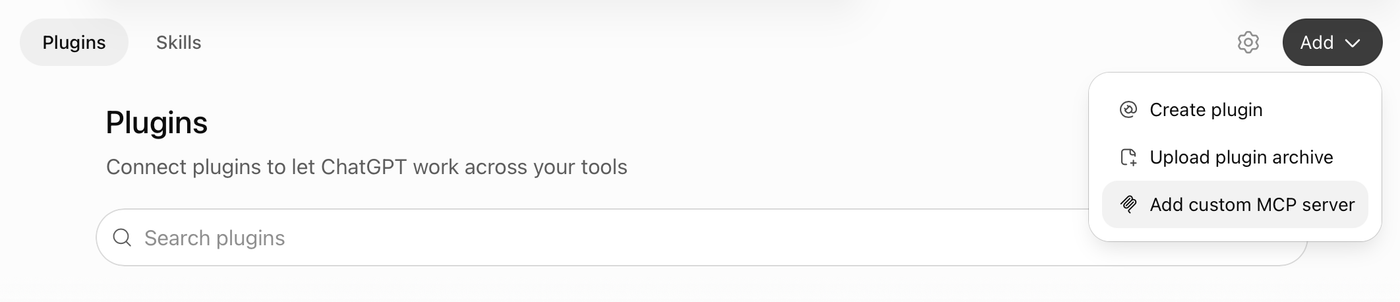
- In ChatGPT, click Plugins in the sidebar.
- Click Add and choose Add custom MCP server.
- Name it Videosync and enter the MCP URL under Connection. Authentication fills in as OAuth. Leave the advanced OAuth settings as they are.
- Tick I understand and want to continue and click Create as a plugin.
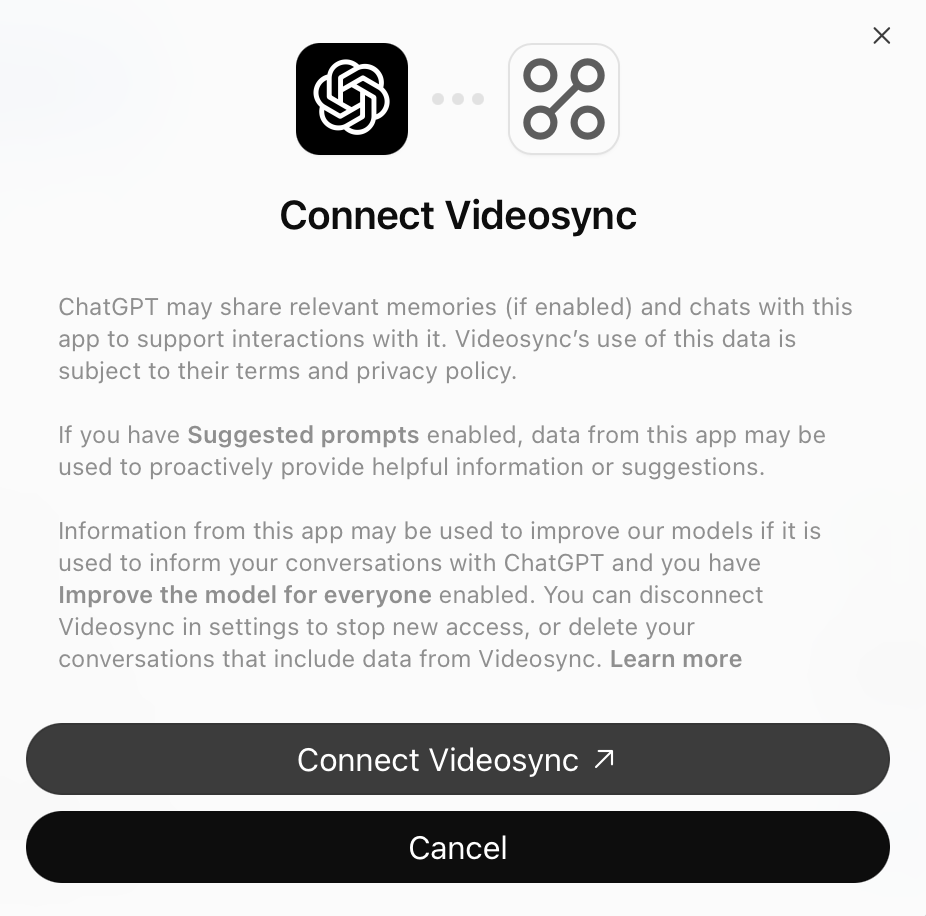
- Click Connect Videosync.
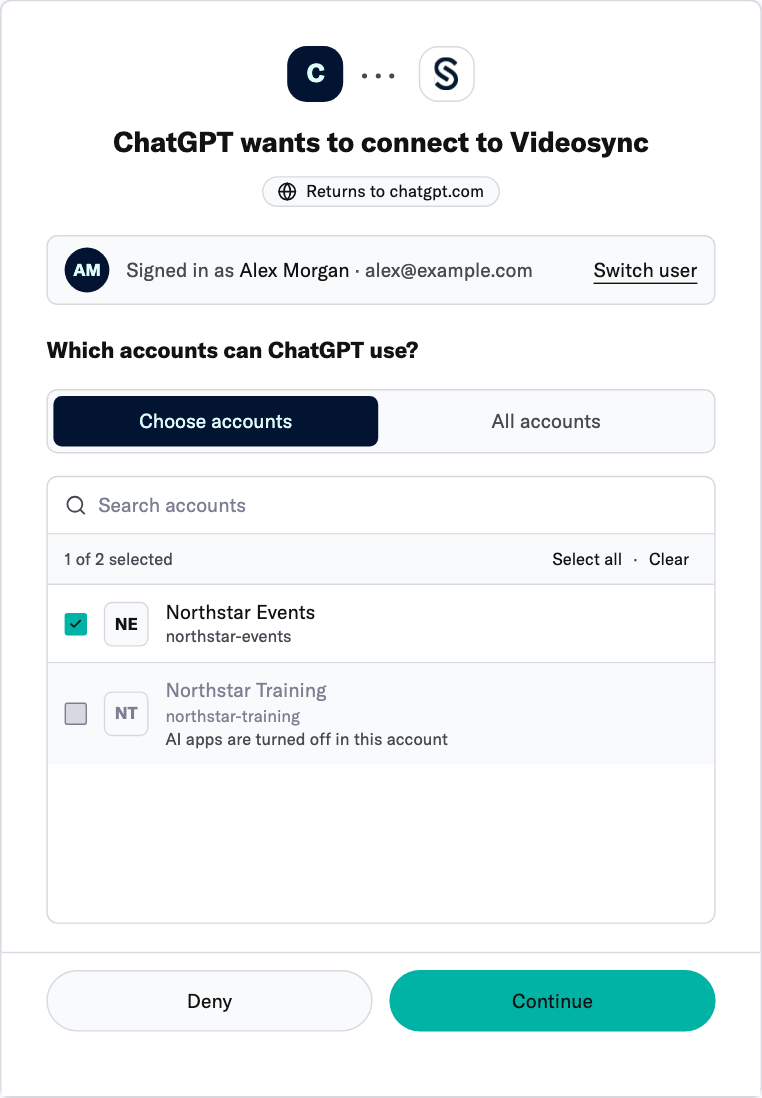
- Sign in to Videosync and choose the accounts and tools ChatGPT can use. See What you allow below.
What you allow
After you sign in, review the accounts and tools ChatGPT can use.
- Accounts. Pick the accounts to share and click Continue. All accounts also covers accounts you get access to later. An account with AI apps turned off is unavailable. If you have only one account, Videosync can take you straight to the tools step.
- Tools. Review the ticked tools and clear anything you want to withhold. Locked tools are unavailable in the accounts you picked. When the Read attendee data section appears, review it before allowing access to personal information such as names, emails and registration answers. Click Allow to finish.
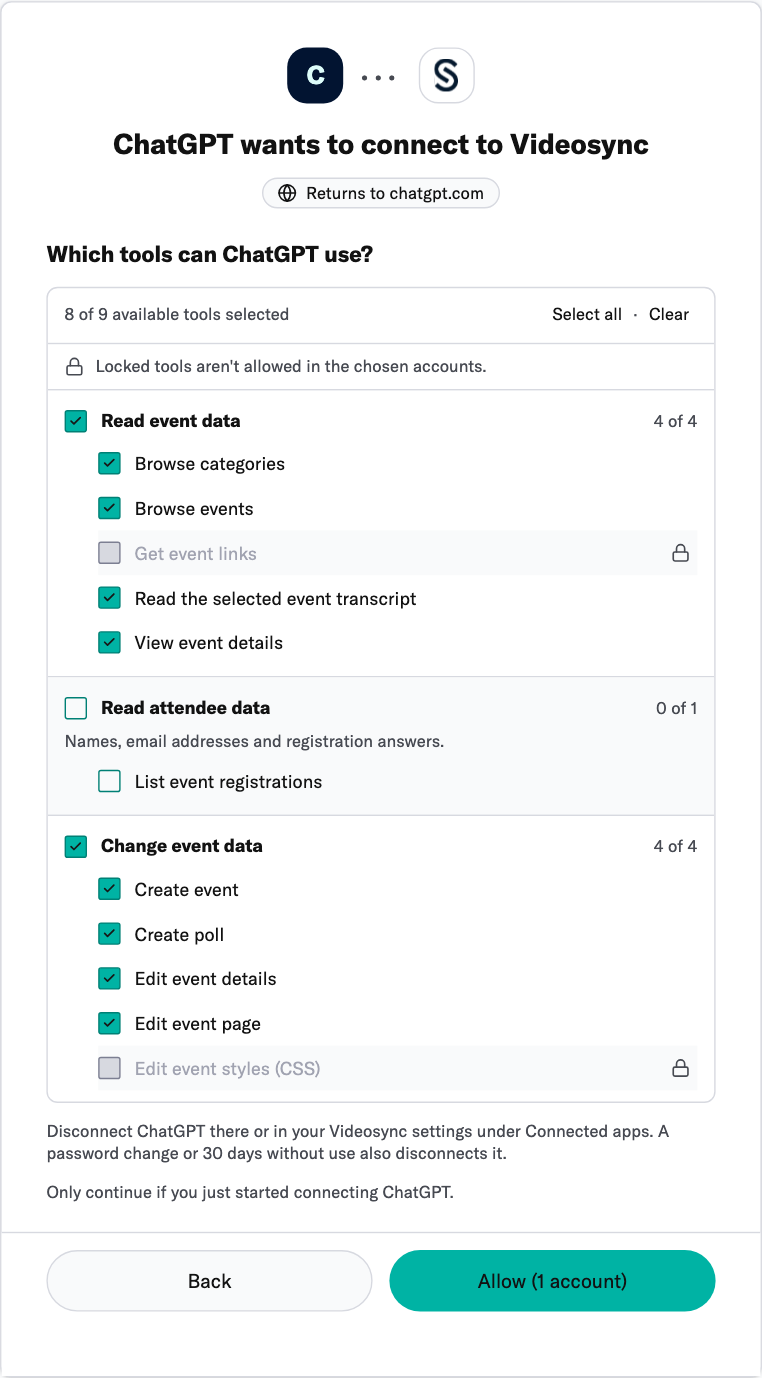
ChatGPT acts as you. Its changes show your name in the event’s version history. If you lose access to an account, ChatGPT loses it too.
With the updated consent flow, leaving every available tool ticked allows future tools where your account permits them. Clearing any available tool keeps the connection limited to your selection. To change your choices, connect again from ChatGPT and review the consent page.
Use it
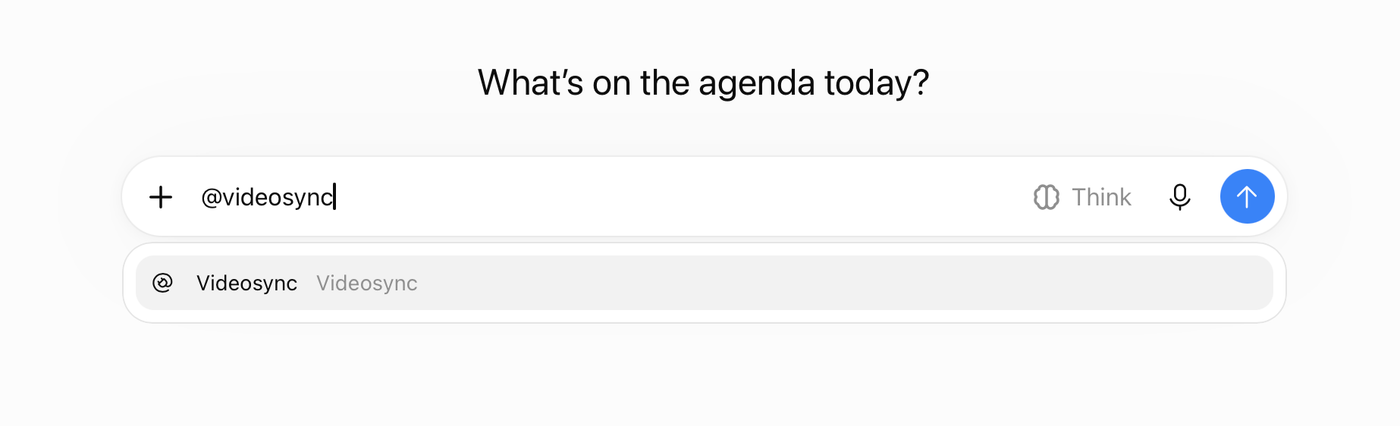
Type @videosync in a chat and pick Videosync, then ask about your events.
If a change goes wrong, see Undo a change with version history in AI tools and MCP .
Disconnect ChatGPT
In Videosync, open Settings. Under You, open AI apps (MCP) and disconnect ChatGPT. You can also remove the connection from ChatGPT. A password change or 30 days without use disconnects the app from Videosync.