
Connect Claude to Videosync
Last updated: November 19, 2026
Claude connects to Videosync as a custom connector. You sign in with your own Videosync user and choose which accounts and tools Claude can use.
Your account must allow at least one tool for AI apps. See AI tools and MCP .
The MCP URL is https://api.videosync.fi/mcp
You can also copy it in Videosync. Open Settings and, under You, open AI apps (MCP).
Custom connectors work on every Claude plan. The Free plan allows one. Once added, the connector works in Claude on the web, in the desktop app and in the mobile apps.
Quick setup
If your company already added Videosync to Claude, you can skip adding it. Connect and you’re done:
- In Claude, open Customize → Connectors. In Claude Desktop it’s under Settings.
- Click Videosync, then Connect.
- Sign in to Videosync and choose the accounts and tools Claude can use. See What you allow below. In Claude Desktop your browser then asks to open Claude. Click Open Claude.
- In a chat, open the connectors menu and check that Videosync is switched on.
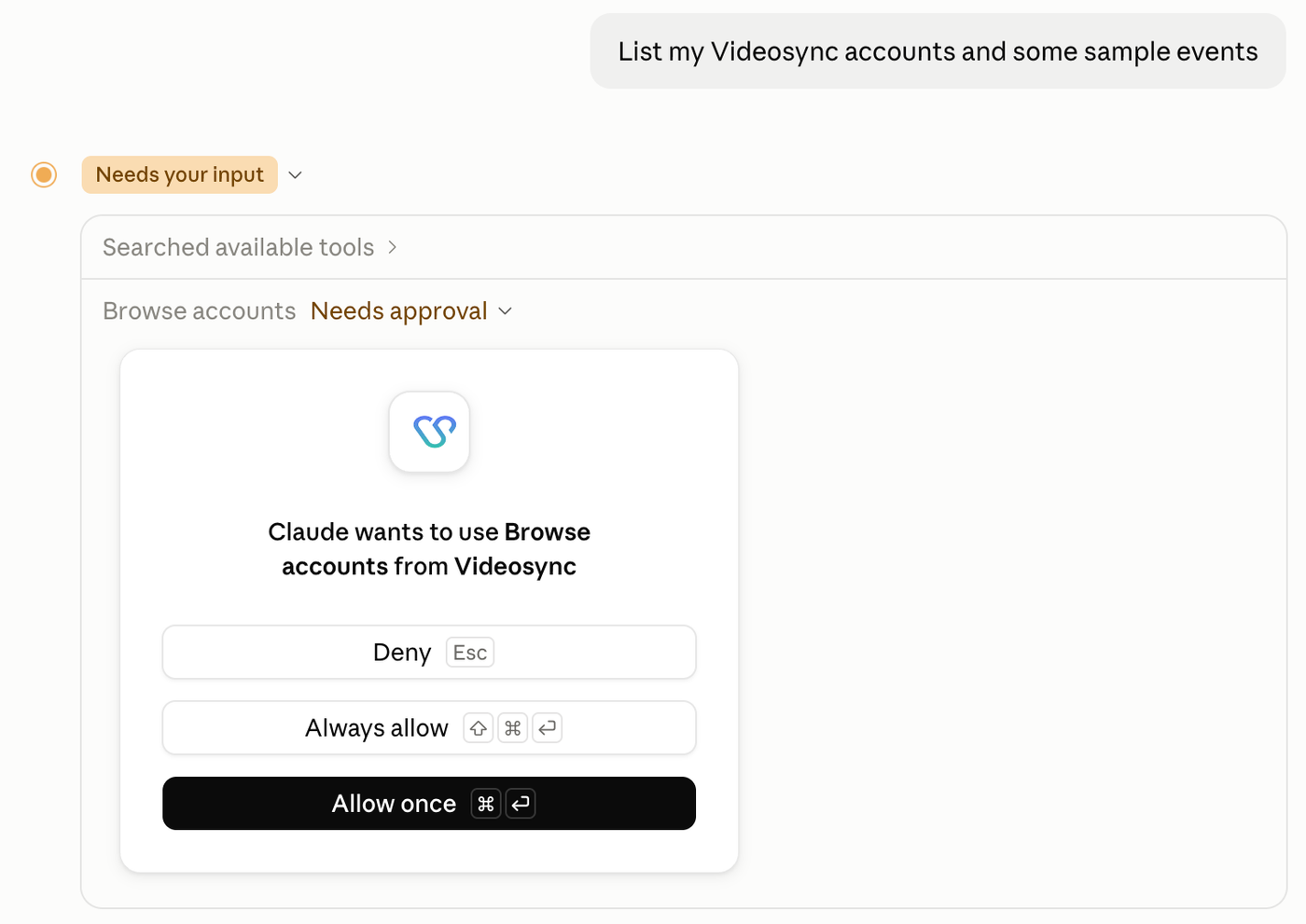
Claude asks before it uses a Videosync tool. To change that per tool, open Videosync under Connectors and use Tool permissions.
Videosync isn’t in the list? Follow the steps below.
Add the connector
- In Claude, open Customize → Connectors. In Claude Desktop it’s under Settings.
- Click + Add and choose Add custom connector.
- Name it Videosync and enter the MCP URL. Click Continue.
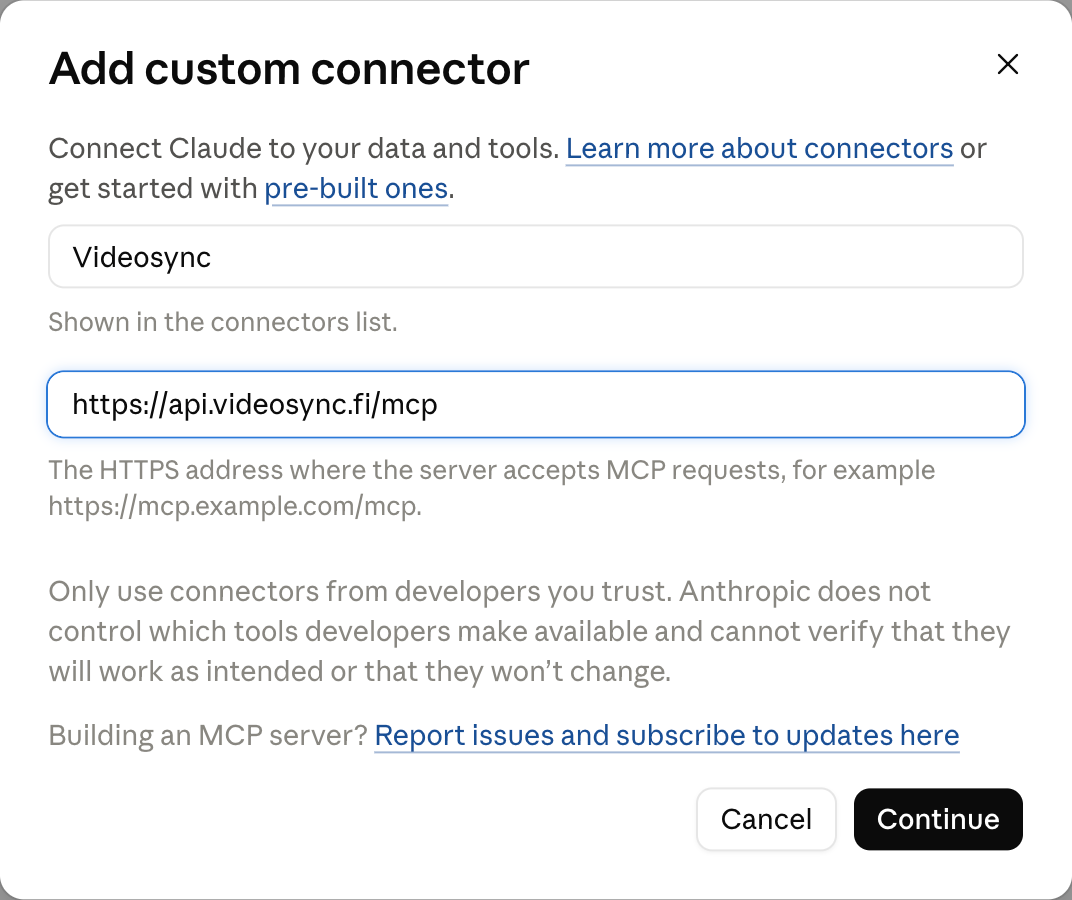
- Claude detects the sign-in settings: Sign in now and Register automatically. Leave them as they are and click Add.
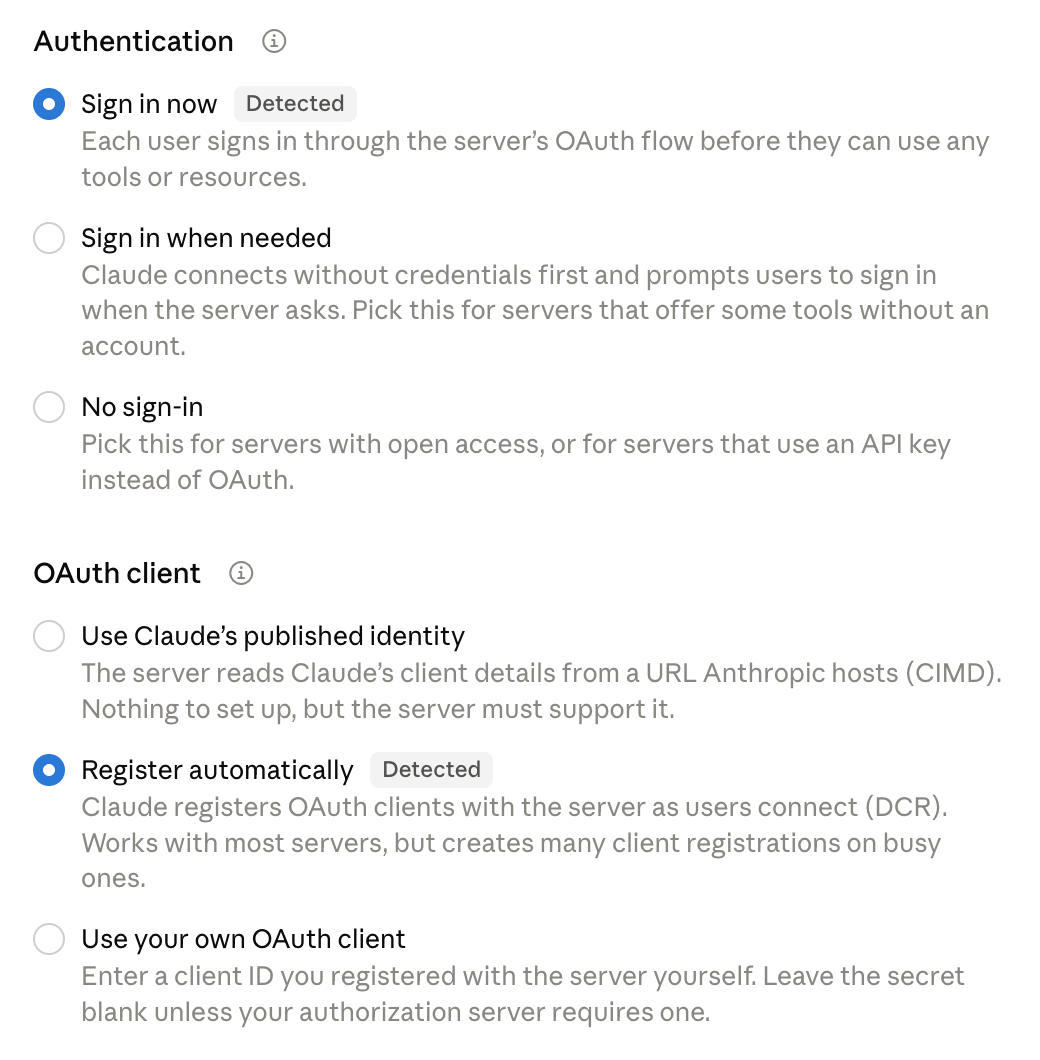
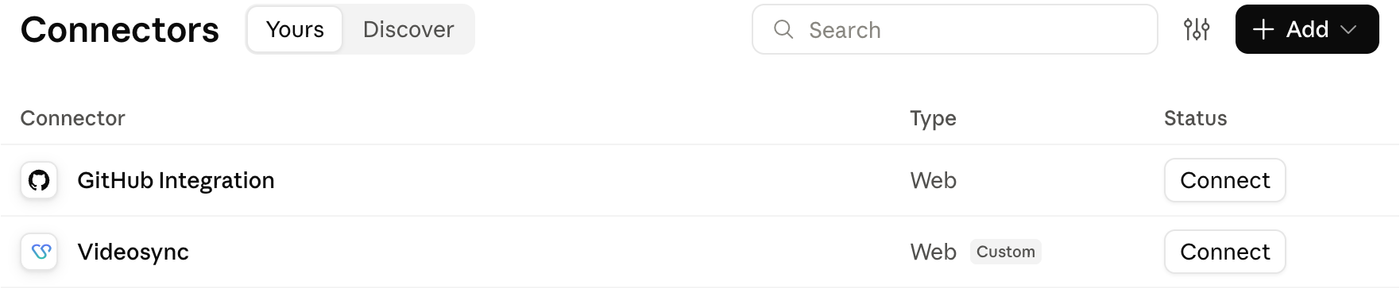
- Click Connect next to Videosync.
- If Claude opens your browser, click Continue connecting.
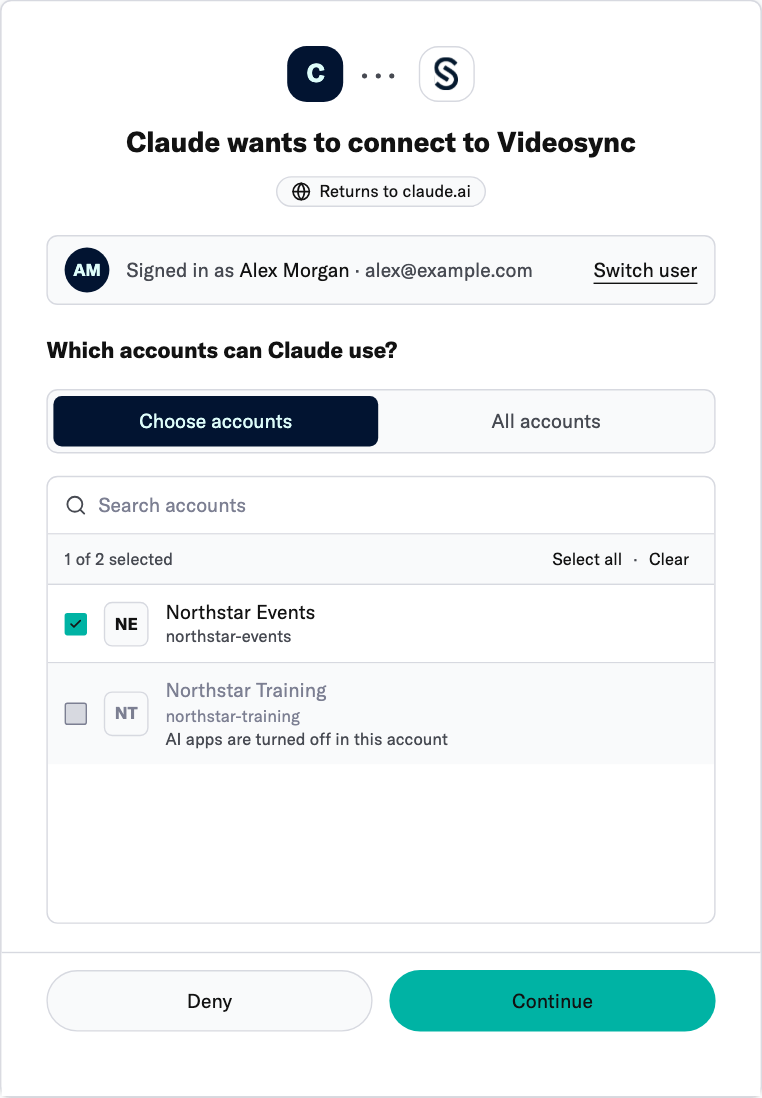
- Sign in to Videosync and choose the accounts and tools Claude can use. See What you allow below.
If your company manages Claude
If your company manages Claude, an owner adds the connector once for everyone. You may not be able to add it yourself. Ask your Claude admin.
The owner opens Organization settings → Connectors in Claude. Click Add, hover over Custom and choose Web. Then follow steps 3 and 4 above.
Each person then opens Customize → Connectors and clicks Connect next to Videosync. Everyone signs in with their own Videosync user.
More in Anthropic’s guide: Getting started with custom connectors using remote MCP .
What you allow
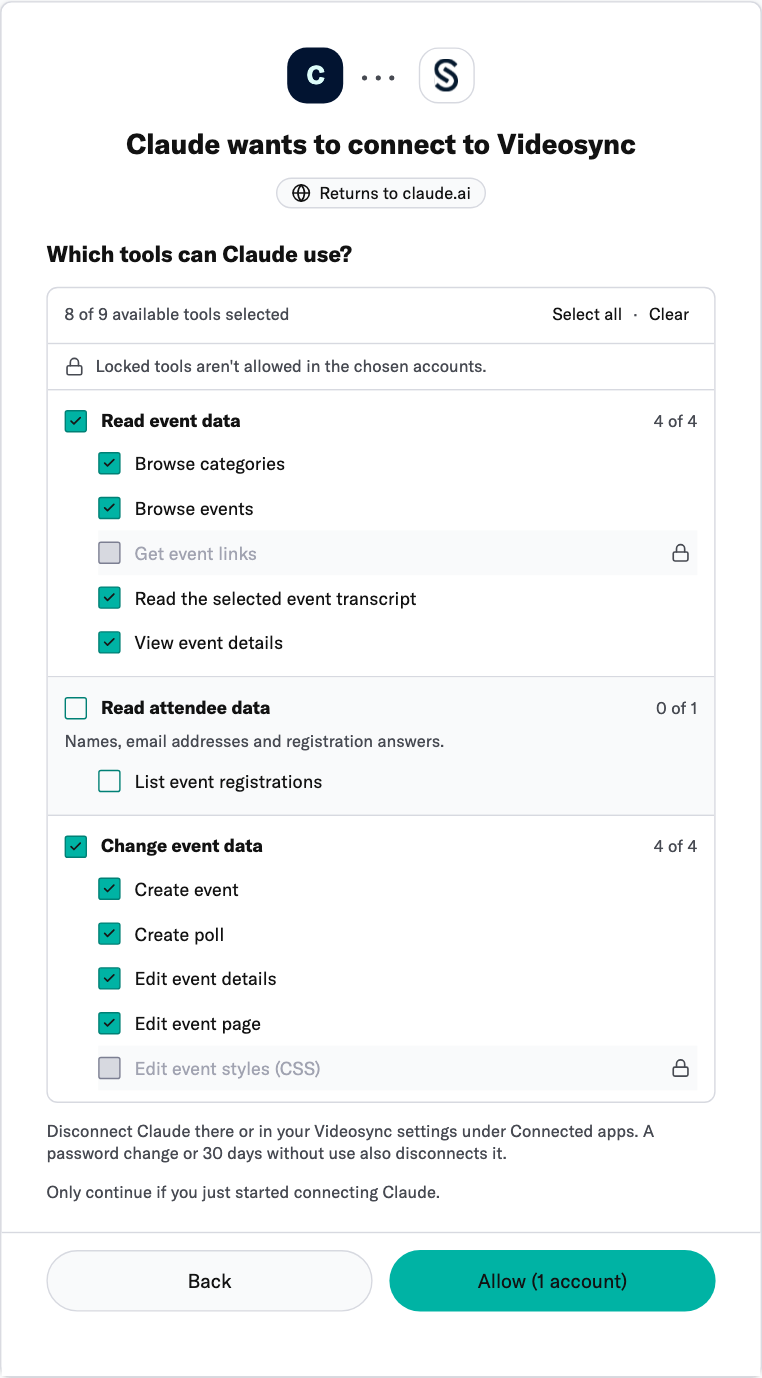
After you sign in, review the accounts and tools Claude can use.
- Accounts. Pick the accounts to share and click Continue. All accounts also covers accounts you get access to later. An account with AI apps turned off is unavailable. If you have only one account, Videosync can take you straight to the tools step.
- Tools. Review the ticked tools and clear anything you want to withhold. Locked tools are unavailable in the accounts you picked. When the Read attendee data section appears, review it before allowing access to personal information such as names, emails and registration answers. Click Allow to finish.
Claude acts as you. Its changes show your name in the event’s version history. If you lose access to an account, Claude loses it too.
With the updated consent flow, leaving every available tool ticked allows future tools where your account permits them. Clearing any available tool keeps the connection limited to your selection. To change your choices, connect again from Claude and review the consent page.
Use it
Ask Claude about your events in any chat. Claude asks before it uses a Videosync tool. Allow once asks again next time. Always allow stops asking for that tool, and its changes still apply at once.
If a change goes wrong, see Undo a change with version history in AI tools and MCP .
Disconnect Claude
In Videosync, open Settings. Under You, open AI apps (MCP) and disconnect Claude. You can also remove the connection from Claude. A password change or 30 days without use disconnects the app from Videosync.